
When you have completed this Guide, you will know where to find the various outgoing emails that customers can receive from your EKM online shop. Before you begin, it’s a good idea to make sure your shop has a domain name and an email address set up, especially to handle customer queries.
[summary]
[/summary]
1. From the Dashboard, click the Settings cog in the bottom left-hand corner: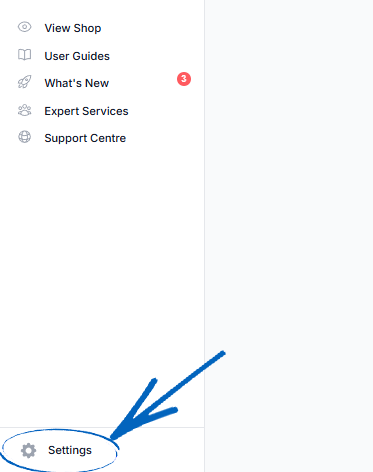
2. Now you need to click Outgoing Emails on the bottom left of the page: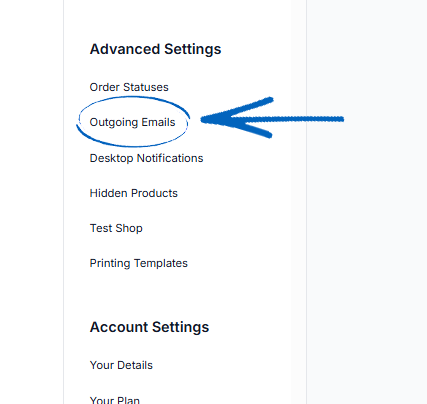
Domain Verification
If your EKM online shop is on the Evolve, Advanced or Pro tier, you’ll see this element at the top of the page, where you can configure your Outgoing Emails to display your Shop Email Address: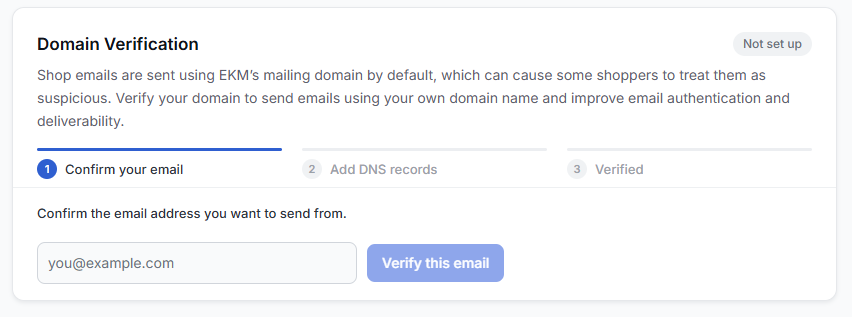
[remember] If your EKM online shop is on the Lite, Basic or Standard tier, click here to learn how to configure your Shop Email Address. [/remember]
[caution] Before you begin this process, you need to have pointed a domain at your EKM online shop and purchased an email address on that domain. If your domain is hosted on EKM Domains, you can purchase an email address by following the steps in this guide - however, if your domain is hosted with a third-party, you will need to refer to them to purchase an email address on your domain. This functionality will not work if the email address is not one attached to your primary domain name. [/caution]
1. To begin, you need to decide on the email address you’d like to use. Best practice would be sales@[yourdomainname], team@[yourdomainname], or similar. When you have selected which email address you’d like to choose, add this to the field provided and click the blue Verify button: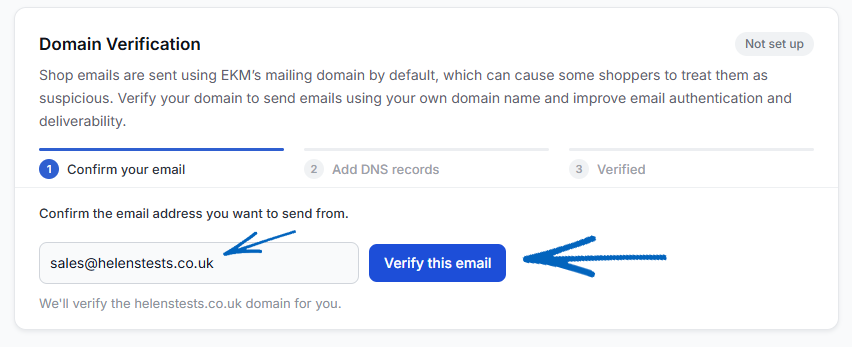
2. You’ll then see these details displayed: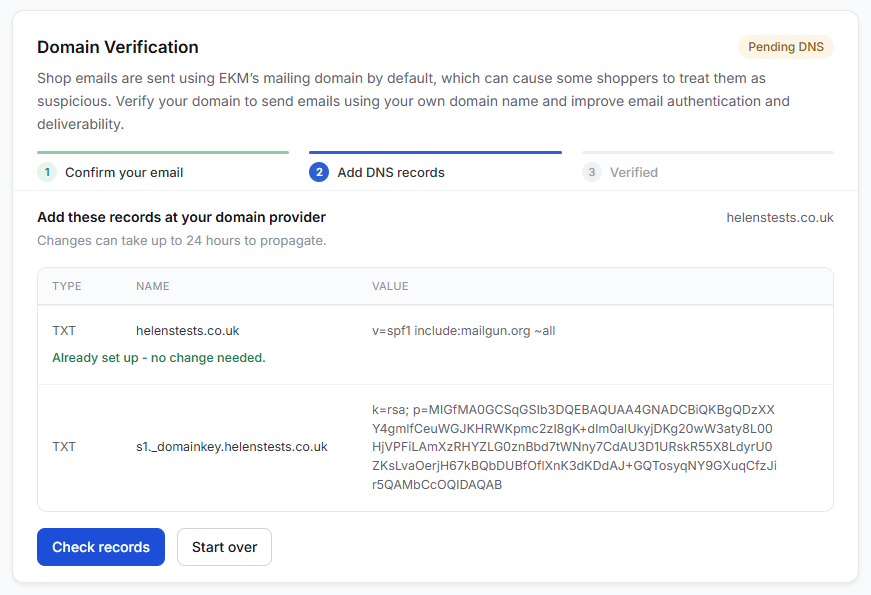
3. In a separate browser tab, log into your EKM Domains account, and click the Domains icon in the top right-hand corner: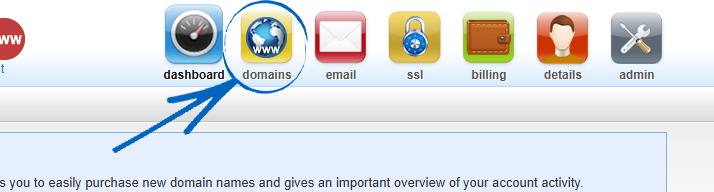
[remember] If your domain is not hosted by EKM Domains, you will need to log into your account held with your domain provider and add these TXT records to your domain. [/remember]
4. Then you need to click the Domain button on the far right-hand side of your domain:
5. Click Advanced DNS in the bottom right-hand corner: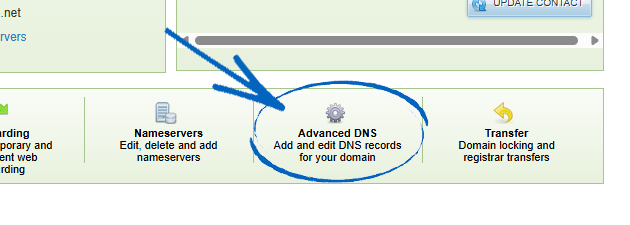
6. Scroll to the bottom of this page to see your TXT Records. Click Add Record on the right-hand side: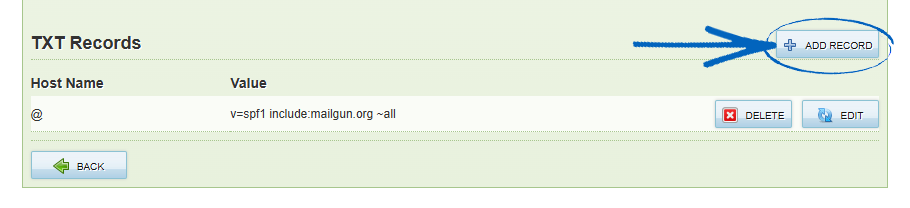
7. Return to the browser tab displaying your EKM online shop, and copy the name of TXT record: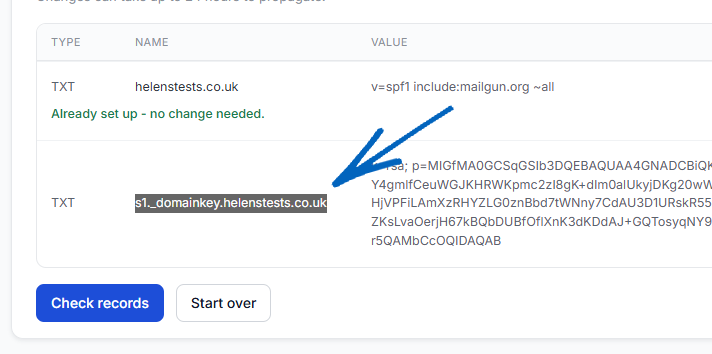
8. Return to the browser tab displaying your EKM Domains account and paste the name into the Host Name field. Delete the shop domain name from the Host Name: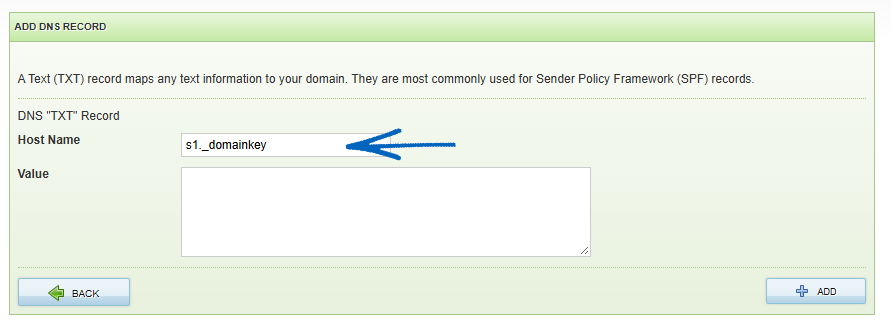
9. Return to the browser tab displaying your EKM online shop, and copy the TXT record value: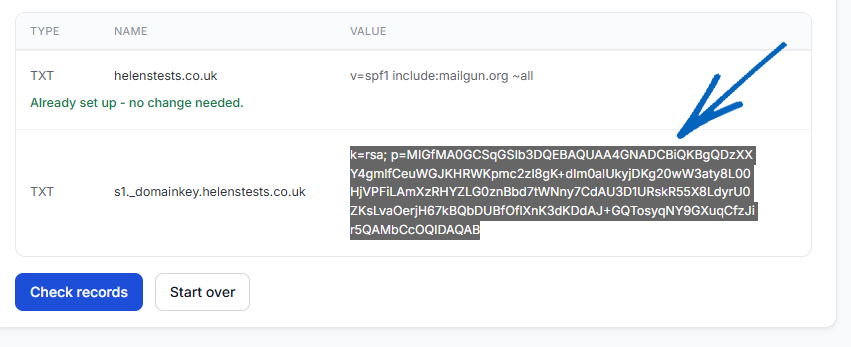
10. Return to the browser tab displaying your EKM Domains account and paste the value into the Value field, before clicking the Add button in the bottom right-hand corner: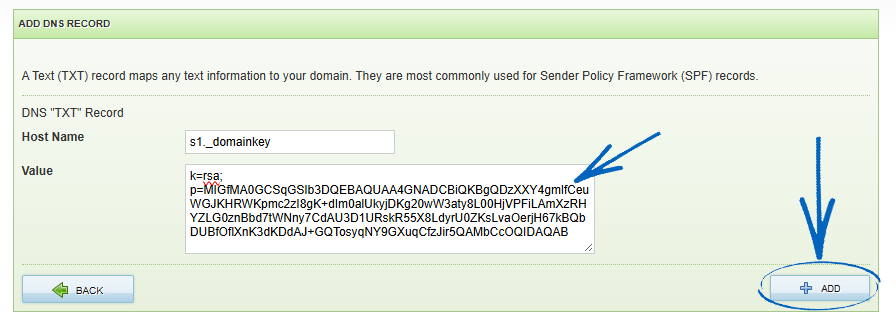
11. Your TXT records on your domain should look like this: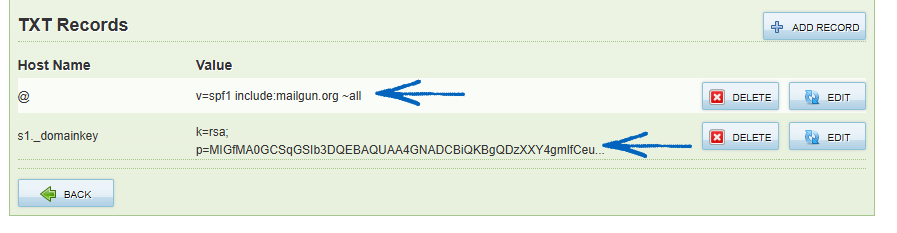
12. Which should match the TXT records listed on your EKM online shop. Note that the first TXT record on your EKM online shop has your domain name listed as the TXT record Name, whilst within your EKM Domains account, this is an @ symbol, but the Value remains the same for both. This configuration is correct, so do ensure that the value matches with the @ symbol on the EKM Domains side and the domain name on the EKM online shop side: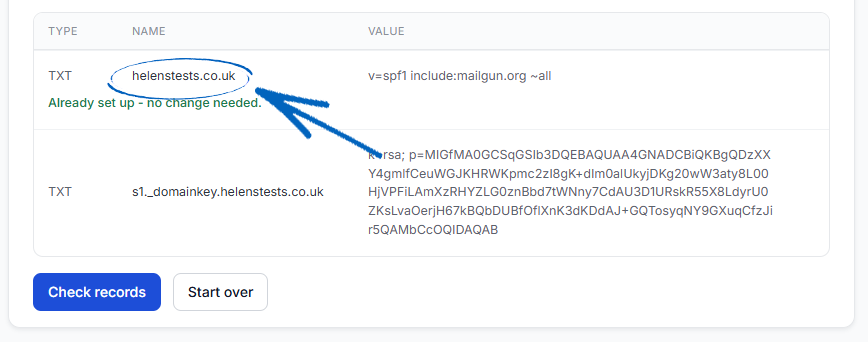
[remember] When adjusting settings on a domain, you need to allow 24-36 hours to propagate. [/remember]
13. As any changes to domains can take between 24-36 hours to propagate, the TXT records cannot be verified right away. If your domain is hosted with EKM Domains, this process can be a lot quicker. Wait around two hours and then click the Check Records button. You may see caution symbols on the right-hand side of your TXT records. This is normal and means that the changes have not fully propagated: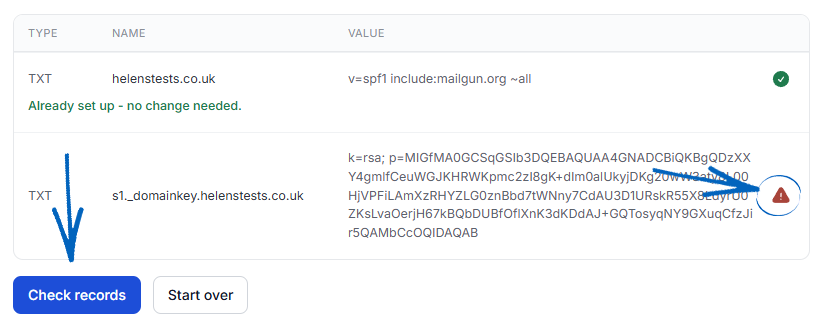
14. When the changes have propagated, you will see this notification: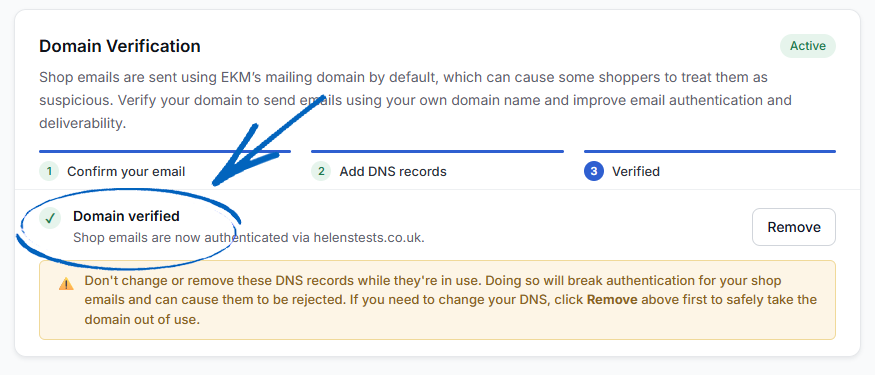
[caution] Don’t change or remove these DNS records while they’re in use. Doing so will break authentication for your shop emails and can cause them to be rejected. If you need to change the DNS settings on your domain, click the Remove button above first to safely take the domain out of use. When you have finished amending your domain’s DNS settings, you will need to repeat the process above. [/caution]
15. When your TXT records have been correctly configured, customers who receive emails from your EKM online shop will see your email address: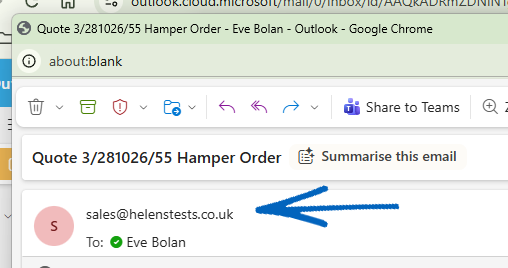
Email Settings
16. When you have configured your TXT settings, you need to make sure the same email address is copied into the Shop Email Address field: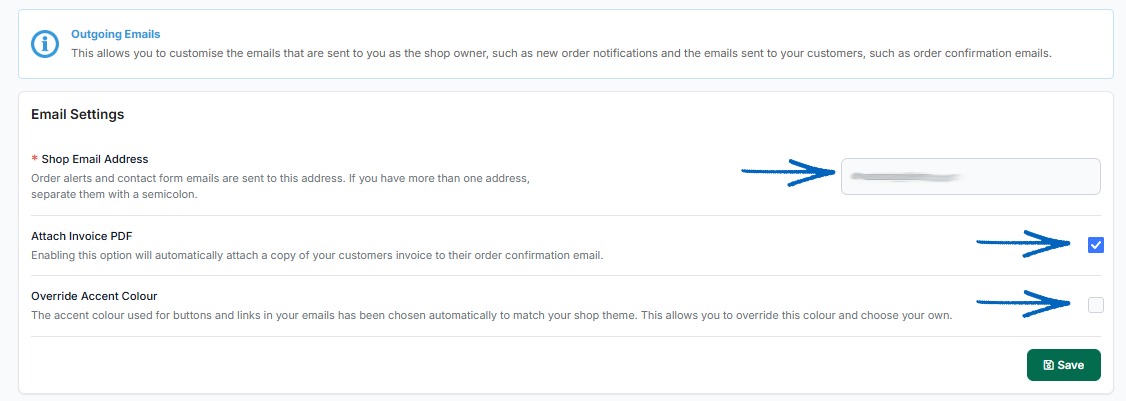
No TXT Records
If your EKM online shop is on the Lite, Basic or Standard Tier, you will be presented with the Shop Email Address field. Here, you need to add an email address which matches your domain name- such as sales@[yourdomainname] or similar. This ensures customers receive emails from your shop sent from the correct address. 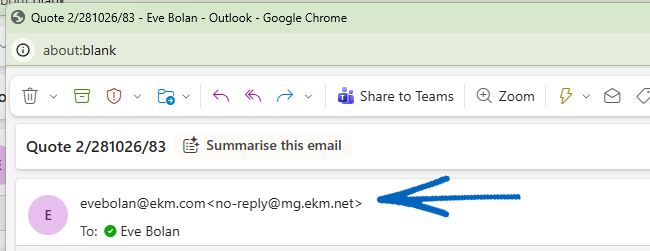
[warning]Do not add an email address from a free provider, such as an email that ends in @Gmail.com, @Yahoo.com, @BTInternet.com or similar. Not only does this look very unprofessional, but using a free email address in this field can, on occasion, prevent customers from receiving emails from your EKM online shop.
The reason is that each free email provider - and there are many - has different settings for what it considers spam. When customers place an order in your EKM online shop, the system sends them a confirmation email from the address specified in the Shop Email Settings field, using a method called ‘spoofing’. What this means is that the email appears to come from your email address, but it’s sent on your behalf by your EKM online shop.
This is a perfectly normal procedure that many platforms use; however, some email providers may mistakenly classify these emails as spam or, worse, block them from reaching your customers. To avoid this, ensure you have a dedicated email address set up that ends in your domain name, so your emails are always delivered to your customers and not classed as potential spam by their email providers. [/warning]
Attach Invoice PDF
If you expect your EKM online shop to have a lot of business customers, tick this box to ensure that a PDF version of the order invoices is attached to the email for your customers
Override Accent Colour
Here you can tick the box to override the Accent Colour of your outgoing emails from the Theme defaults in your EKM online shop.
1. Ticking the box reveals a Colour Picker window. Click it: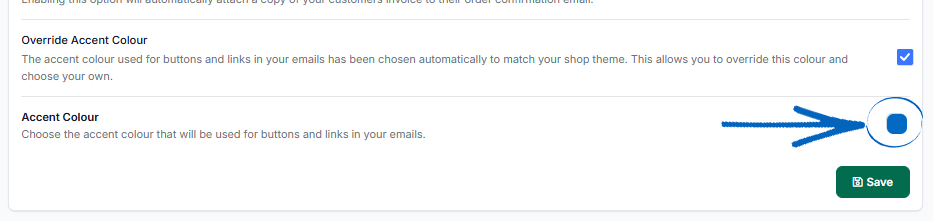
2. You can drag the circle in the larger window to select your shade, use the slider below that to select the colour, click one of the primary colours below to use one of those, or if you have a hex code for a specific colour, paste it into the field and press Enter on your keyboard: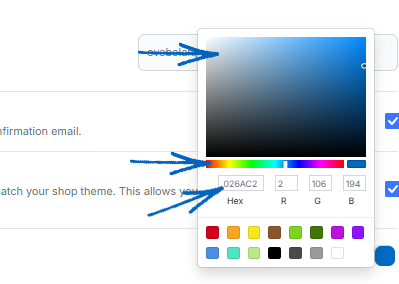
3. When you have finished amending the settings here, click the green Save button on the right-hand side: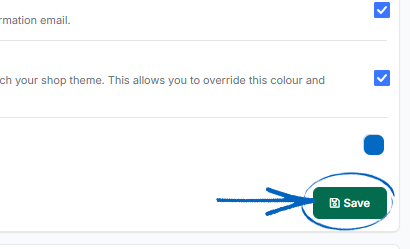
Email Templates
4. Further down the page, you have the Email Templates. This is where you can view and edit the actual content of the automatic emails which are generated by your EKM online shop. Click the down arrow symbols on the right-hand side to reveal the email templates for each category: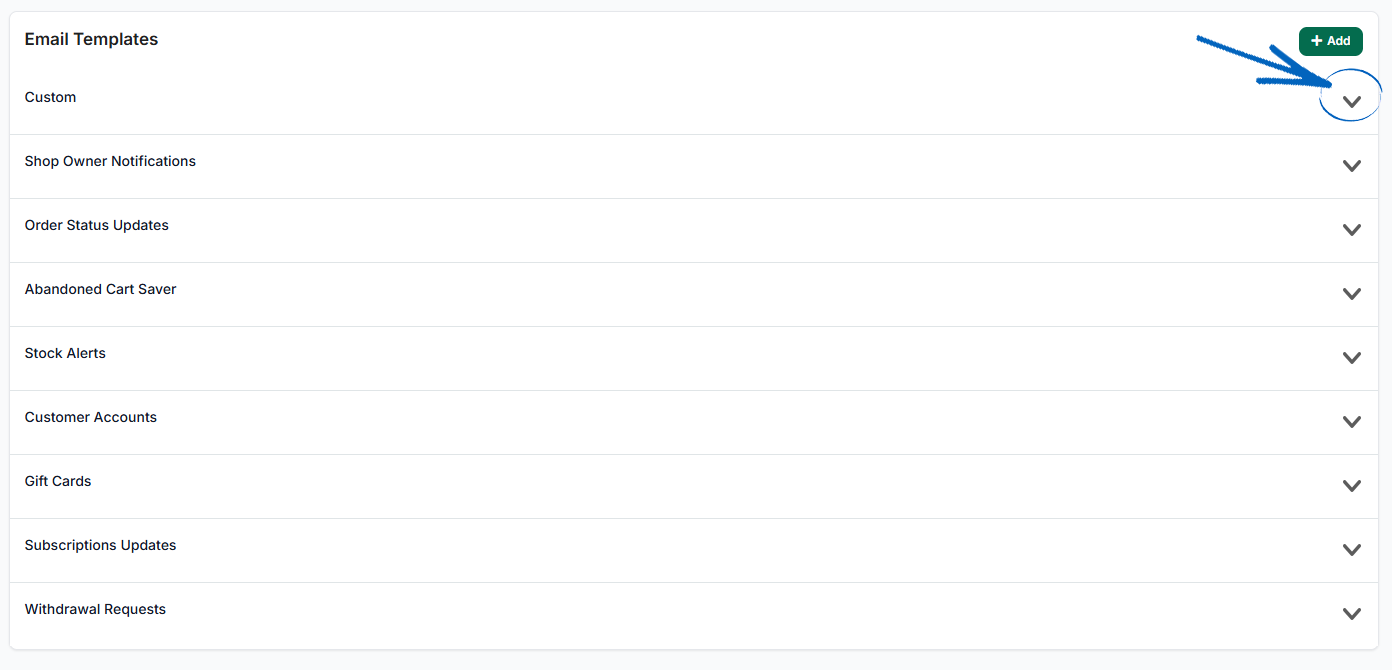
Custom
Here, you’ll see any Custom Emails you have created for your EKM online shop. Click the header to reveal these emails, and you’ll also see two default ones we have created for you: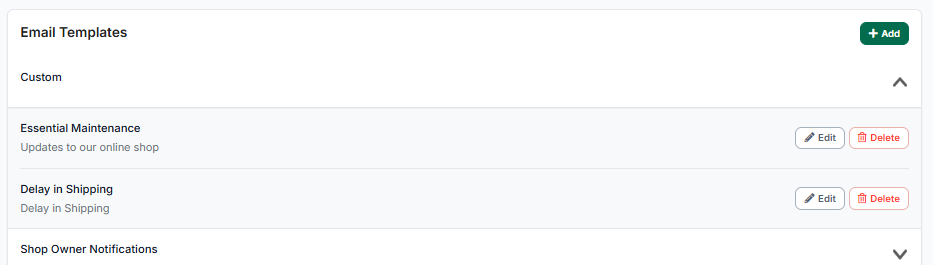
[tips] You can create Custom Emails for your EKM online shop by following the steps in this guide.[/tips]
Shop Owner Notifications
Click this Header to reveal the Email Templates: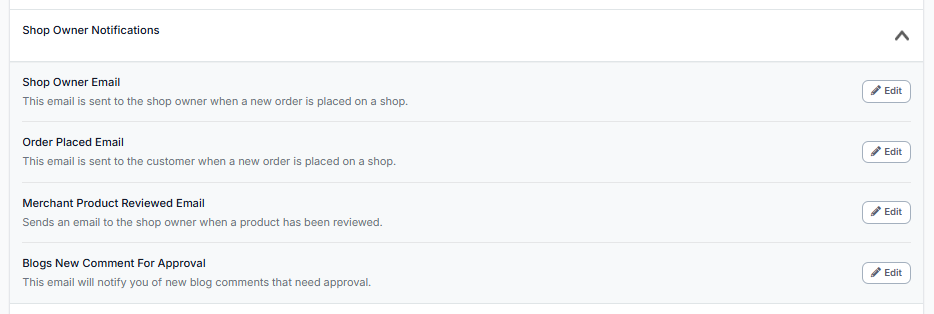
Shop Owner Email
This is the email sent to you, the shop owner, when an order is placed on your EKM online shop. The email will be sent to the address that you added in the Shop Email Address field above, on this same page. You shouldn't need to edit the content of this email as it’s simply a correspondence between you and your EKM online shop, but it is possible.
Order Placed Email
This email is the first the customer will receive from your EKM online shop after placing their order. It’s a good idea to revise this email's content to make it more personal to your brand.
[tips] This guide takes you through the different steps you need to take to edit your Outgoing Email templates. [/tips]
Merchant Product Reviewed Email
If you have installed the Customer Reviews feature on your EKM online shop, when a customer has left a review for a product, you will receive this notification email.
Blogs New Comment For Approval
If you have installed the EKM Blogs feature, you’ll see this email. You’ll receive it as the shop owner whenever a new comment has been made on your blog.
Order Status Updates
These are the emails your customers receive whenever you change an order's status or create a quote. It’s advisable to edit the content of these to match the voice of your brand, but as always, don’t delete any of the EKM Tags, as this will prevent the emails from working properly and displaying the correct information. If you have installed the Customer Reviews feature on your EKM online shop, when a customer purchases from you, they will receive the Product Review email encouraging them to leave reviews for the products they have bought: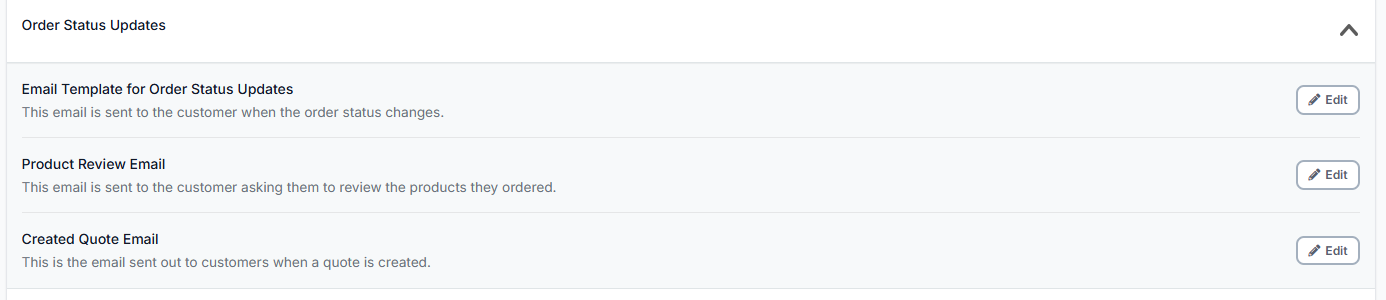
[tips]This guide takes you through the different steps you need to take to edit your Outgoing Email templates. [/tips]
Abandoned Cart Saver
If you have installed the Abandoned Cart Statistics feature on your EKM online shop, you’ll know that you can select how often and how many Abandoned Cart emails a customer may receive after abandoning an order: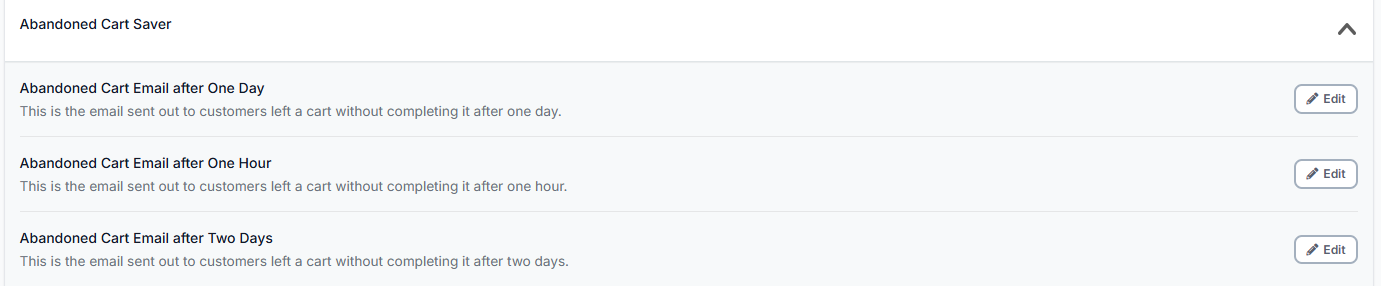
Stock Alerts
If you have installed the Back In Stock Statistics feature and enabled Back In Stock Alerts, this is where you can amend the email notification the customer will receive:
Customer Accounts
If you have installed Customer Login and Trade Discounts on your EKM online shop, this is the area where you can edit all the emails a customer could potentially receive regarding their account on your EKM online shop: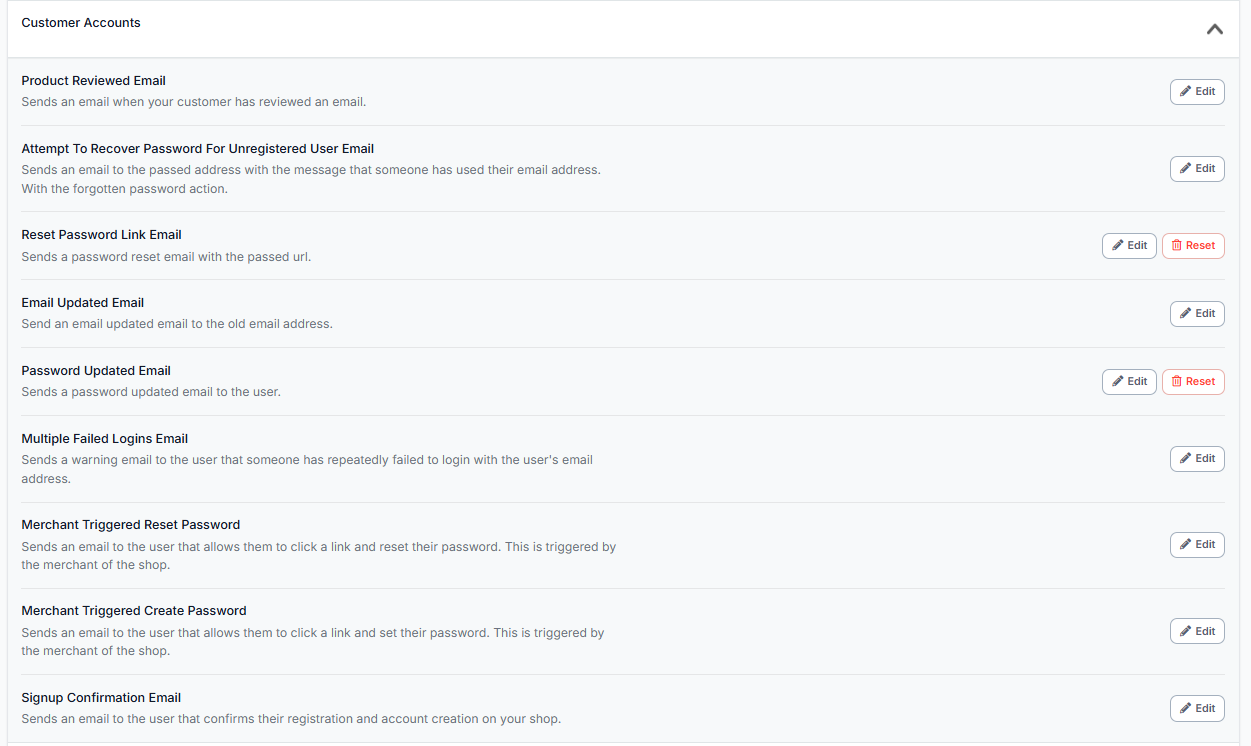
[caution] Some email templates have an Edit button, whilst some have an Edit and a Delete button. Templates with only an Edit button are essential and cannot be removed from your EKM online shop, but optional templates can be deleted. [/caution]
Subscriptions Updates
All the email templates here refer to the Subscription Payments feature: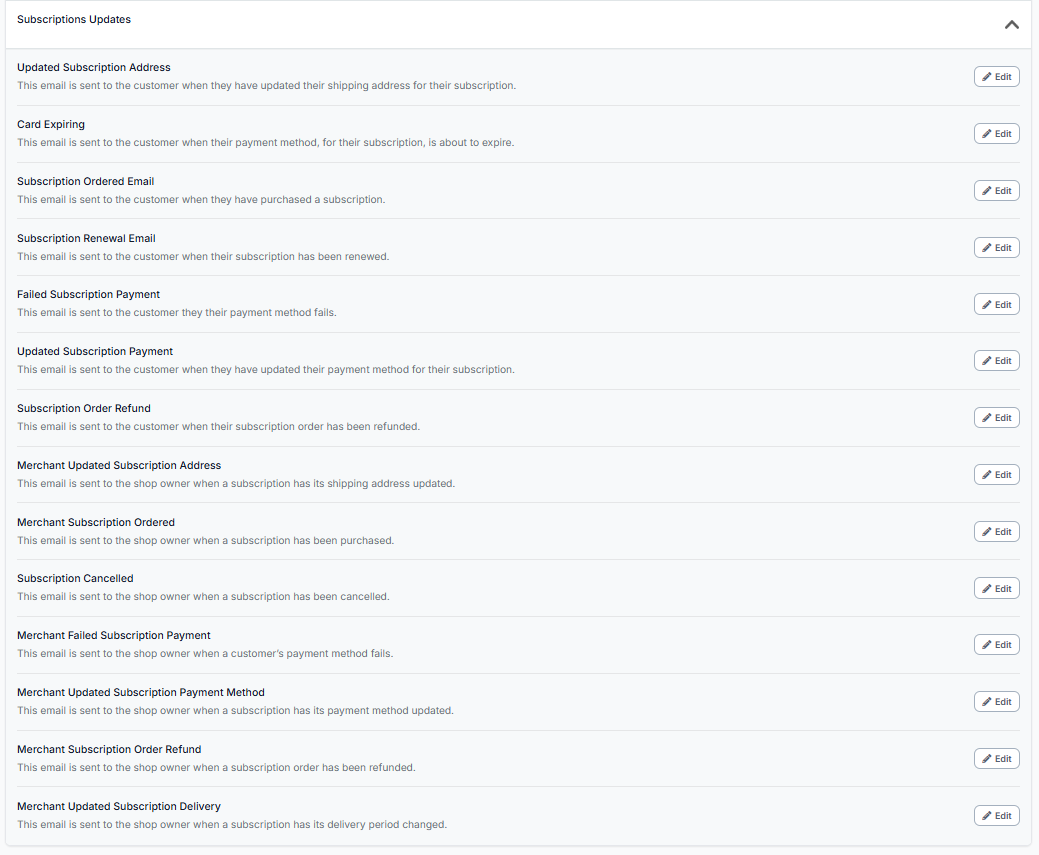
Withdrawal Requests
The emails listed here correspond with the EU Right of Withdrawal process: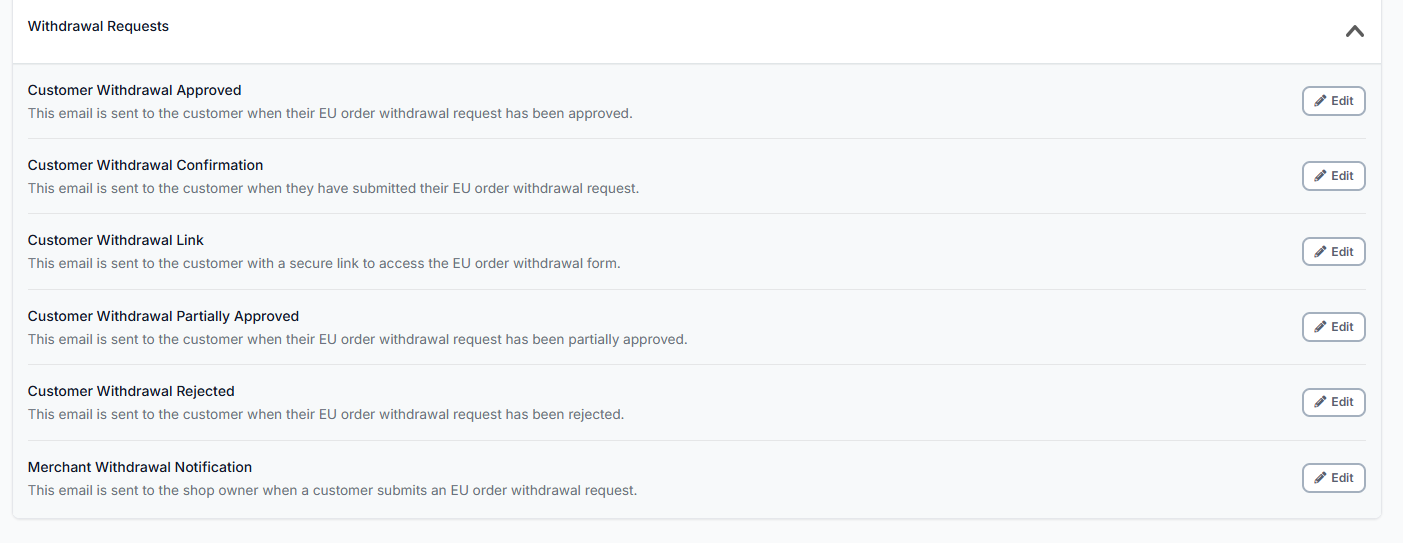
[more]
[/more]
[contact]If you need our help with your EKM online shop, contact the Customer Support Team, who can point you in the right direction. Our opening hours are 9 am - 5.30 pm Monday to Friday, for telephone calls, live chats, and emails. Outside of these hours, you can leave a message for us in the live chat window or email support@ekm.com, and we will answer as soon as possible. If you'd like to suggest a feature or an upgrade on any of the EKM platforms, please let us know on the EKM Suggestions Board. [/contact]